Responsive Images: The Complete Guide
Master responsive images with srcset, sizes, picture element, and art direction. Learn how to serve the right image size to every device for faster loading and better performance.
Serving a 3000px image to a phone is wasteful. Serving a 400px image to a 5K monitor looks terrible. Responsive images solve this problem by letting browsers pick the right size for each device.
It’s one of the most effective performance optimizations you can make, yet most websites still get it wrong.

Responsive images: Serve the perfect size to every device, from phones to 5K displays
The problem
Imagine you have a hero image on your website. To look sharp on high-resolution displays, you make it 2400px wide. That’s a 800 KB JPEG.
What actually happens:
- Desktop user with 1920px screen: Downloads 800 KB, displays at 1920px (reasonable)
- Laptop user with 1440px screen: Downloads 800 KB, displays at 1440px (wasteful)
- Tablet user with 768px screen: Downloads 800 KB, displays at 768px (very wasteful)
- Phone user with 375px screen: Downloads 800 KB, displays at 375px (extremely wasteful)
The phone user just downloaded an image 6× larger than they needed. On a slow connection, that’s the difference between a 2-second load and a 10-second load.
Responsive images fix this. Instead of serving one huge image to everyone, you create multiple sizes and let the browser pick the right one.
The solution: Three techniques
HTML gives you three ways to do responsive images:
srcsetwithsizes- Let the browser pick the best size (most common)pictureelement - You control which image loads (art direction)- CSS
image-set()- Responsive background images
Let’s break down each one.
Technique 1: srcset and sizes
This is the workhorse. You provide multiple image sizes, describe how the image will be displayed, and the browser picks the best fit.
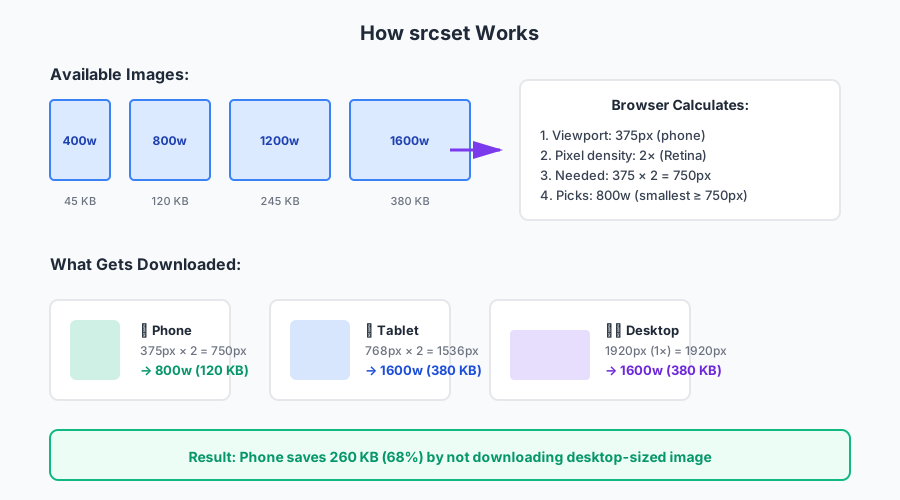
How srcset works: Browser picks the best image based on viewport size and pixel density
Basic srcset example
<img
  src="hero-800.jpg"
  srcset="
    hero-400.jpg 400w,
    hero-800.jpg 800w,
    hero-1200.jpg 1200w,
    hero-1600.jpg 1600w
  "
  sizes="100vw"
  alt="Hero image"
/>
What this does:
src="hero-800.jpg"- Fallback for old browserssrcset="..."- List of available images with their widths400w,800w, etc. - Image widths in pixels (not a typo, it’swnotpx)sizes="100vw"- Image will be 100% of viewport width
How the browser picks:
- Checks viewport width (e.g., 375px on a phone)
- Checks pixel density (e.g., 2× on iPhone)
- Calculates needed width (375px × 2 = 750px)
- Picks the smallest image that’s big enough (hero-800.jpg)
The phone user now downloads 80 KB instead of 800 KB. That’s a 90% savings.
Advanced sizes attribute
The sizes attribute is where the magic happens. It tells the browser how wide the image will actually be displayed.
Simple example:
sizes="100vw" <!-- Image is 100% of viewport width -->The sizes attribute tells the browser how wide the image will be displayed at different viewport sizes.
More realistic example:
sizes="(max-width: 768px) 100vw, 50vw"This says:
- On screens 768px or smaller: image is 100% width
- On larger screens: image is 50% width
Complex real-world example:
<img
  srcset="
    product-400.jpg 400w,
    product-800.jpg 800w,
    product-1200.jpg 1200w,
    product-1600.jpg 1600w
  "
  sizes="
    (max-width: 640px) 100vw,
    (max-width: 1024px) 50vw,
    33vw
  "
  src="product-800.jpg"
  alt="Product photo"
/>
This says:
- Mobile (≤640px): image fills screen (100vw)
- Tablet (641-1024px): image is half screen (50vw)
- Desktop (>1024px): image is one-third screen (33vw)
The browser picks the optimal size for each breakpoint automatically.
Pixel density descriptors
Sometimes you just want to serve high-res versions for Retina displays:
<img
  src="logo.png"
  srcset="
    logo.png 1x,
    logo@2x.png 2x,
    logo@3x.png 3x
  "
  alt="Company logo"
/>1x- Standard displays2x- Retina/high-DPI displays (most phones, MacBooks)3x- Ultra-high-DPI displays (newer iPhones)
This is perfect for logos, icons, and UI elements that stay the same size regardless of viewport.
Technique 2: The picture element
srcset is great when you just need different sizes of the same image. But sometimes you need different images for different situations. That’s art direction.
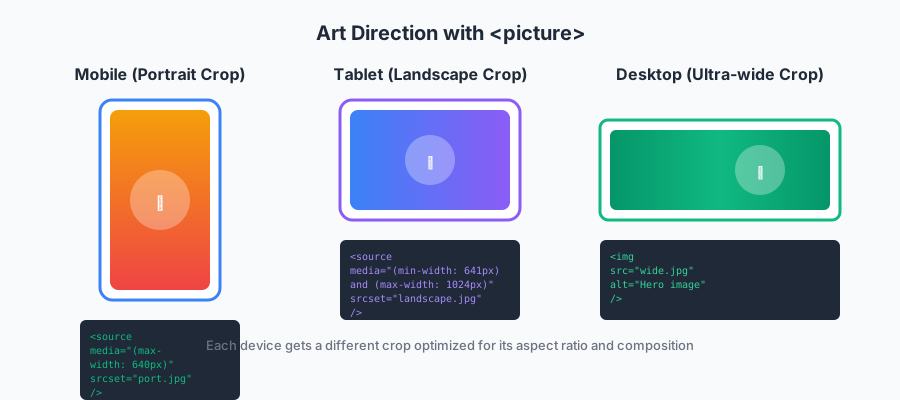
Art direction: Show different crops or compositions for different screen sizes
Art direction example
<picture>
  <source
    media="(max-width: 640px)"
    srcset="hero-portrait.jpg"
  />
  <source
    media="(max-width: 1024px)"
    srcset="hero-landscape.jpg"
  />
  <img
    src="hero-wide.jpg"
    alt="Hero image"
  />
</picture>
What this does:
- Mobile (≤640px): Shows portrait-oriented crop
- Tablet (641-1024px): Shows landscape crop
- Desktop (>1024px): Shows ultra-wide crop
The browser picks the first matching <source> and ignores the rest.
Why you’d use this
Example 1: Product photo
- Mobile: Close-up crop showing product detail
- Desktop: Full scene with product in context
Example 2: Hero image with text
- Mobile: Text readable on small screen
- Desktop: Different composition with text in different position
Example 3: Portrait photos
- Mobile: Portrait orientation (taller than wide)
- Desktop: Landscape orientation (wider than tall)
Combining picture with srcset
You can use both together for ultimate control:
<picture>
  <source
    media="(max-width: 640px)"
    srcset="
      hero-mobile-400.jpg 400w,
      hero-mobile-800.jpg 800w
    "
    sizes="100vw"
  />
  <source
    media="(min-width: 641px)"
    srcset="
      hero-desktop-800.jpg 800w,
      hero-desktop-1600.jpg 1600w,
      hero-desktop-2400.jpg 2400w
    "
    sizes="100vw"
  />
  <img src="hero-desktop-800.jpg" alt="Hero image" />
</picture>
Now you have:
- Different images for mobile vs desktop (art direction)
- Multiple sizes for each (performance optimization)
- Browser picks the best combination
Technique 3: Format selection
Use picture to serve modern formats with fallbacks:
<picture>
  <source srcset="photo.avif" type="image/avif" />
  <source srcset="photo.webp" type="image/webp" />
  <img src="photo.jpg" alt="Photo" />
</picture>
Browser logic:
- Supports AVIF? Load photo.avif (smallest)
- No? Supports WebP? Load photo.webp (smaller)
- No? Load photo.jpg (fallback)
This gives you the benefits of modern formats without breaking old browsers.
Combining everything
Here’s the ultimate responsive image setup:
<picture>
  <!-- Modern formats for mobile -->
  <source
    media="(max-width: 640px)"
    srcset="
      mobile-400.avif 400w,
      mobile-800.avif 800w
    "
    sizes="100vw"
    type="image/avif"
  />
  <source
    media="(max-width: 640px)"
    srcset="
      mobile-400.webp 400w,
      mobile-800.webp 800w
    "
    sizes="100vw"
    type="image/webp"
  />

  <!-- Modern formats for desktop -->
  <source
    media="(min-width: 641px)"
    srcset="
      desktop-800.avif 800w,
      desktop-1600.avif 1600w,
      desktop-2400.avif 2400w
    "
    sizes="100vw"
    type="image/avif"
  />
  <source
    media="(min-width: 641px)"
    srcset="
      desktop-800.webp 800w,
      desktop-1600.webp 1600w,
      desktop-2400.webp 2400w
    "
    sizes="100vw"
    type="image/webp"
  />

  <!-- Fallback -->
  <img
    srcset="
      desktop-800.jpg 800w,
      desktop-1600.jpg 1600w,
      desktop-2400.jpg 2400w
    "
    sizes="100vw"
    src="desktop-800.jpg"
    alt="Hero image"
  />
</picture>
Yes, it’s verbose. But it gives you:
- Art direction (different images for mobile/desktop)
- Modern formats (AVIF, WebP with JPEG fallback)
- Multiple sizes (browser picks optimal size)
- Perfect fallback (works in IE11 if needed)
Most frameworks/CMSs generate this automatically.
What sizes should you create?
General rule: Create sizes that match your common breakpoints, plus 1.5× and 2× for high-DPI displays.
Common breakpoint sizes
Mobile:   400w, 640w, 800w
Tablet:   768w, 1024w, 1280w
Desktop:  1280w, 1600w, 1920w, 2400w
Ultra-wide: 3200w (for 5K displays)
Practical approach
For full-width hero images:
- 400w, 800w, 1200w, 1600w, 2400w
For content images (typically 600-800px max):
- 400w, 600w, 800w, 1200w
For thumbnails/cards (typically 300px max):
- 300w, 600w (2× for Retina)
For logos/icons (fixed size):
- 1×, 2×, 3× versions
Don’t go overboard
Creating 20 different sizes has diminishing returns:
- Increases storage/bandwidth costs
- Complicates deployment
- Minimal user benefit beyond a certain point
Sweet spot: 4-6 sizes per image covers 95% of use cases.
Testing responsive images
Chrome DevTools
- Open DevTools (F12)
- Network tab → Filter by “Img”
- Reload page
- Check which image files loaded and their sizes
- Change device emulation → reload → verify different size loads
Firefox DevTools
Similar to Chrome:
- Network tab → filter “Images”
- Check loaded resources
- Use Responsive Design Mode to test different viewports
What to verify
- Mobile viewport loads smallest images
- Desktop viewport loads larger images
- 2× displays load higher-resolution versions
- Modern browsers load WebP/AVIF when available
- Old browsers fall back to JPEG/PNG
- No duplicate image downloads
- Images look sharp on all devices
Common mistakes
Mistake 1: Wrong sizes attribute
<!-- ❌ Wrong: sizes doesn't match actual display -->
<img
  srcset="img-400.jpg 400w, img-800.jpg 800w"
  sizes="100vw"
  style="max-width: 600px"
/>
The image is max 600px wide but sizes="100vw" tells the browser it’s full viewport. Browser downloads too-large images.
Fix:
<!-- ✅ Correct: sizes matches actual display -->
<img
  srcset="img-400.jpg 400w, img-800.jpg 800w"
  sizes="(max-width: 600px) 100vw, 600px"
/>
Mistake 2: Forgetting pixel density
<!-- ❌ Wrong: no consideration for 2× displays -->
<img
  srcset="img-400.jpg 400w, img-800.jpg 800w"
  sizes="400px"
/>
On a 2× display (Retina), the browser needs an 800px image but might pick the 400px one if sizes doesn’t account for density.
Fix: The browser handles this automatically when you use w descriptors correctly. Just make sure you have images big enough for 2× the display size.
Mistake 3: Not including src fallback
<!-- ❌ Wrong: old browsers show nothing -->
<img
  srcset="img-400.jpg 400w, img-800.jpg 800w"
  sizes="100vw"
/>
Fix:
<!-- ✅ Correct: src fallback for old browsers -->
<img
  src="img-800.jpg"
  srcset="img-400.jpg 400w, img-800.jpg 800w"
  sizes="100vw"
/>
Mistake 4: Using picture when srcset would work
<!-- ❌ Overcomplicated: picture not needed for simple sizing -->
<picture>
  <source media="(max-width: 640px)" srcset="img-400.jpg" />
  <source media="(max-width: 1024px)" srcset="img-800.jpg" />
  <img src="img-1200.jpg" />
</picture>
Fix:
<!-- ✅ Simpler: let browser decide with srcset -->
<img
  srcset="img-400.jpg 400w, img-800.jpg 800w, img-1200.jpg 1200w"
  sizes="100vw"
  src="img-800.jpg"
/>
Use picture only when you need art direction (different crops) or format selection.
Automating responsive images
Generating all these sizes manually is tedious. Automate it.
Build-time generation
Sharp (Node.js):
const sharp = require('sharp');

const sizes = [400, 800, 1200, 1600, 2400];

sizes.forEach(width => {
  sharp('original.jpg')
    .resize(width)
    .jpeg({ quality: 85 })
    .toFile(`output-${width}.jpg`);
});
ImageMagick (CLI):
for size in 400 800 1200 1600 2400; do
  magick original.jpg -resize ${size}x -quality 85 output-${size}.jpg
done
Frameworks
Astro (built-in):
---
import { Image } from 'astro:assets';
import heroImage from '../images/hero.jpg';
---

<Image
  src={heroImage}
  widths={[400, 800, 1200, 1600, 2400]}
  sizes="100vw"
  alt="Hero"
/>
Astro generates all sizes automatically.
Next.js:
import Image from 'next/image';

<Image
  src="/images/hero.jpg"
  width={2400}
  height={1350}
  sizes="100vw"
  alt="Hero"
/>
Next.js generates responsive images on-demand.
CDN solutions
Cloudinary:
<img
  srcset="
    https://res.cloudinary.com/.../w_400/image.jpg 400w,
    https://res.cloudinary.com/.../w_800/image.jpg 800w,
    https://res.cloudinary.com/.../w_1200/image.jpg 1200w
  "
  sizes="100vw"
/>
Imgix:
<img
  srcset="
    https://assets.imgix.net/image.jpg?w=400 400w,
    https://assets.imgix.net/image.jpg?w=800 800w,
    https://assets.imgix.net/image.jpg?w=1200 1200w
  "
  sizes="100vw"
/>
Our tool (imgfast):
We can generate all sizes for you. Upload once, get responsive image code automatically.
Performance impact
Let’s look at real numbers. Here’s a typical hero image:
Original 2400px image:        850 KB
Optimized for mobile (400px): 45 KB
Optimized for tablet (800px): 120 KB
Optimized for desktop (1600px): 380 KB
Without responsive images:
- Mobile user: Downloads 850 KB (19× larger than needed)
- Tablet user: Downloads 850 KB (7× larger than needed)
- Desktop user: Downloads 850 KB (2× larger than needed)
With responsive images:
- Mobile user: Downloads 45 KB ✅
- Tablet user: Downloads 120 KB ✅
- Desktop user: Downloads 380 KB ✅
Result: 90% bandwidth savings for mobile, 86% for tablet, 55% for desktop.
On a slow 3G connection:
- Without: 850 KB = 11 seconds to load
- With: 45 KB = 0.6 seconds to load
That’s the difference between users waiting and users engaging.
The bottom line
Responsive images are essential in 2025. Mobile traffic dominates, and users expect fast load times.
Simple implementation:
- Use
srcsetandsizesfor most images - Create 4-6 sizes (400w, 800w, 1200w, 1600w, 2400w)
- Use
picturefor art direction or format selection - Automate generation with build tools or frameworks
- Test on real devices
Expected results:
- 50-90% reduction in image bandwidth
- Faster page loads (especially on mobile)
- Better Core Web Vitals scores
- Happier users
Start with your hero images and largest content images. Those give you the biggest wins.
Related articles:
- JPEG: The Format That Won’t Die - Optimize your JPEG images
- WebP: Google’s Modern Format - Smaller images with srcset
- Lazy Loading Images - Defer offscreen images
- Images and Core Web Vitals - Impact on performance metrics
Questions? We’re a small team and actually read our emails - reach out if you need help with responsive images.