Lazy Loading Images: 2025 Guide
Master image lazy loading for better performance. Learn native loading='lazy', Intersection Observer, blur-up techniques, and best practices for Core Web Vitals.
Why load images the user can’t see? Lazy loading defers offscreen images until they’re needed - faster initial page load, less bandwidth wasted, better user experience. It’s one of the easiest performance wins you can implement.

Lazy loading: Only load images when users scroll to them - save bandwidth and improve performance
What is lazy loading?
Lazy loading means images don’t load until they’re about to become visible. Instead of downloading 50 images when the page loads, you download 3-5 visible ones and load the rest as users scroll.
The benefits:
- Faster initial page load - Fewer requests, less data transferred
- Better Core Web Vitals - Improved LCP, reduced bandwidth consumption
- Bandwidth savings - Users don’t download images they never see
- Better mobile experience - Critical on slow connections
The reality check:
Not all images should be lazy loaded. Hero images and above-the-fold content should load immediately. Lazy loading is for content below the fold.
Native lazy loading: The easy way
Modern browsers support lazy loading natively. Just add one attribute:
<img src="photo.jpg" loading="lazy" alt="Description" />That’s it. The browser handles everything. Learn more about native lazy loading on MDN.
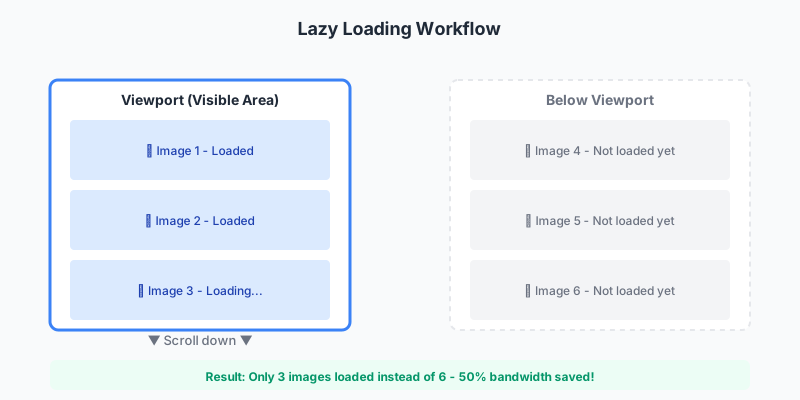
How lazy loading works: Images load as users scroll, saving bandwidth and improving initial load time
How it works
The browser monitors scroll position and loads images ~1000-2000px before they enter the viewport. This gives images time to load before users see them.
The three values:
<!-- Lazy load (recommended for most images) -->
<img src="image.jpg" loading="lazy" />

<!-- Eager load (default, loads immediately) -->
<img src="hero.jpg" loading="eager" />

<!-- Auto (let browser decide) -->
<img src="image.jpg" loading="auto" />
Browser support
Excellent - 96%+ of browsers support it:
- Chrome/Edge: Since 2019
- Firefox: Since 2020
- Safari: Since 2021
- Mobile: Excellent support
For the 4% that don’t support it, images just load normally. Perfect progressive enhancement.
What to lazy load
✅ Lazy load these:
- Images below the fold
- Gallery images
- Product listings
- Blog post images (except featured image)
- User-generated content
- Comments/social media embeds
- Carousels (except first slide)
❌ Don’t lazy load these:
- Hero images
- Logos
- Above-the-fold content
- First 2-3 images on the page
- CSS background images (can’t use loading attribute)
Quick implementation
<!-- Hero image - load immediately -->
<img
  src="hero.jpg"
  alt="Hero"
  loading="eager"
  fetchpriority="high"
/>

<!-- Below-fold images - lazy load -->
<img src="image1.jpg" alt="Content" loading="lazy" />
<img src="image2.jpg" alt="Content" loading="lazy" />
<img src="image3.jpg" alt="Content" loading="lazy" />
Done. That’s the whole implementation for most websites.
Advanced: JavaScript lazy loading
For more control or older browser support, use JavaScript. The modern approach uses Intersection Observer API.
Basic Intersection Observer
<!-- Add data-src instead of src -->
<img data-src="photo.jpg" alt="Photo" class="lazy" />

<script>
// Select all lazy images
const lazyImages = document.querySelectorAll('img.lazy');

// Create observer
const observer = new IntersectionObserver((entries) => {
  entries.forEach(entry => {
    if (entry.isIntersecting) {
      const img = entry.target;
      img.src = img.dataset.src; // Set actual src
      img.classList.remove('lazy');
      observer.unobserve(img); // Stop observing
    }
  });
});

// Observe each image
lazyImages.forEach(img => observer.observe(img));
</script>
How it works:
- Images start with
data-srcinstead ofsrc(so they don’t load) - Intersection Observer watches when images enter viewport
- When visible, swap
data-srctosrc(triggers load) - Stop observing that image
With loading placeholder
Show a placeholder while images load:
<img
  src="placeholder.jpg"
  data-src="full-image.jpg"
  alt="Description"
  class="lazy"
/>

<style>
  img.lazy {
    filter: blur(10px);
    transition: filter 0.3s;
  }

  img.loaded {
    filter: blur(0);
  }
</style>

<script>
const observer = new IntersectionObserver((entries) => {
  entries.forEach(entry => {
    if (entry.isIntersecting) {
      const img = entry.target;

      // Create new image to preload
      const tempImg = new Image();
      tempImg.onload = () => {
        img.src = img.dataset.src;
        img.classList.add('loaded');
        img.classList.remove('lazy');
      };
      tempImg.src = img.dataset.src;

      observer.unobserve(img);
    }
  });
});

document.querySelectorAll('img.lazy').forEach(img => {
  observer.observe(img);
});
</script>
This creates a nice blur-to-sharp transition as images load.
With root margin
Load images before they enter viewport (smoother experience):
const observer = new IntersectionObserver(
  (entries) => {
    entries.forEach(entry => {
      if (entry.isIntersecting) {
        const img = entry.target;
        img.src = img.dataset.src;
        observer.unobserve(img);
      }
    });
  },
  {
    rootMargin: '200px' // Start loading 200px before visible
  }
);
Adjust rootMargin based on your users’ scroll speed and connection speeds.
Blur-up technique
Popular on Medium and other sites - show a tiny blurred version, then swap to full resolution:
Step 1: Generate tiny placeholder
# Using ImageMagick
magick photo.jpg -resize 20x -quality 60 photo-tiny.jpg

# Using Sharp (Node.js)
sharp('photo.jpg')
  .resize(20)
  .jpeg({ quality: 60 })
  .toFile('photo-tiny.jpg');
The placeholder is ~500 bytes - tiny!
Step 2: Inline the placeholder
<img
  src="data:image/jpeg;base64,/9j/4AAQSkZJRg..." // Inline tiny image
  data-src="photo-full.jpg"
  alt="Photo"
  class="lazy-blur"
  style="filter: blur(20px);"
/>
Step 3: Swap on load
const observer = new IntersectionObserver((entries) => {
  entries.forEach(entry => {
    if (entry.isIntersecting) {
      const img = entry.target;

      const fullImg = new Image();
      fullImg.onload = () => {
        img.src = fullImg.src;
        img.style.filter = 'blur(0)';
        img.style.transition = 'filter 0.3s';
      };
      fullImg.src = img.dataset.src;

      observer.unobserve(img);
    }
  });
});

document.querySelectorAll('img.lazy-blur').forEach(img => {
  observer.observe(img);
});
Users see a blurred preview instantly (inline), then sharp image fades in. Great UX.
Responsive images + lazy loading
Combine lazy loading with srcset for maximum efficiency:
<img
  data-srcset="
    photo-400.jpg 400w,
    photo-800.jpg 800w,
    photo-1200.jpg 1200w
  "
  data-sizes="100vw"
  data-src="photo-800.jpg"
  alt="Photo"
  class="lazy"
  loading="lazy"
/>

<script>
const observer = new IntersectionObserver((entries) => {
  entries.forEach(entry => {
    if (entry.isIntersecting) {
      const img = entry.target;

      // Set srcset and sizes
      if (img.dataset.srcset) {
        img.srcset = img.dataset.srcset;
        img.sizes = img.dataset.sizes;
      }

      // Set fallback src
      img.src = img.dataset.src;

      observer.unobserve(img);
    }
  });
});

document.querySelectorAll('img.lazy').forEach(img => {
  observer.observe(img);
});
</script>
Or just use native lazy loading - it works with srcset automatically:
<img
  srcset="
    photo-400.jpg 400w,
    photo-800.jpg 800w,
    photo-1200.jpg 1200w
  "
  sizes="100vw"
  src="photo-800.jpg"
  alt="Photo"
  loading="lazy"
/>
Browser handles everything. Simple and effective.
Libraries
Don’t want to write your own? Use a library.
lazysizes
The most popular lazy loading library:
<script src="https://cdn.jsdelivr.net/npm/lazysizes@5/lazysizes.min.js" async></script>

<img
  data-src="image.jpg"
  class="lazyload"
  alt="Description"
/>
Features:
- Automatic srcset/sizes support
- SEO-friendly
- Responsive images built-in
- Plugin ecosystem
- IE9+ support
Size: 3.4 KB gzipped
lozad.js
Tiny library using Intersection Observer:
<script src="https://cdn.jsdelivr.net/npm/lozad/dist/lozad.min.js"></script>

<img class="lozad" data-src="image.jpg" />

<script>
  const observer = lozad();
  observer.observe();
</script>
Size: 1.1 KB gzipped
Reality check: Native lazy loading is built-in now. You probably don’t need a library unless you need IE11 support or advanced features.
Common patterns
Pattern 1: Gallery/Grid
<!-- Only first 6 eager, rest lazy -->
<div class="gallery">
  <img src="img1.jpg" alt="" loading="eager" />
  <img src="img2.jpg" alt="" loading="eager" />
  <img src="img3.jpg" alt="" loading="eager" />
  <img src="img4.jpg" alt="" loading="eager" />
  <img src="img5.jpg" alt="" loading="eager" />
  <img src="img6.jpg" alt="" loading="eager" />

  <!-- Rest lazy loaded -->
  <img src="img7.jpg" alt="" loading="lazy" />
  <img src="img8.jpg" alt="" loading="lazy" />
  <!-- ... -->
</div>
Pattern 2: Infinite scroll
<div id="feed"></div>

<script>
// As new items load, they automatically lazy load
function addItem(imageUrl) {
  const item = document.createElement('div');
  item.innerHTML = `
    <img src="${imageUrl}" loading="lazy" alt="Feed item" />
  `;
  document.getElementById('feed').appendChild(item);
}
</script>
Native lazy loading works perfectly with dynamic content.
Pattern 3: Carousel
<div class="carousel">
  <!-- First slide: eager -->
  <div class="slide active">
    <img src="slide1.jpg" loading="eager" />
  </div>

  <!-- Other slides: lazy -->
  <div class="slide">
    <img src="slide2.jpg" loading="lazy" />
  </div>
  <div class="slide">
    <img src="slide3.jpg" loading="lazy" />
  </div>
</div>
Pattern 4: Background images
CSS background images can’t use the loading attribute. Use JavaScript:
<div class="hero" data-bg="hero.jpg"></div>

<style>
  .hero {
    background-size: cover;
    background-position: center;
    min-height: 400px;
  }
</style>

<script>
const observer = new IntersectionObserver((entries) => {
  entries.forEach(entry => {
    if (entry.isIntersecting) {
      const div = entry.target;
      div.style.backgroundImage = `url(${div.dataset.bg})`;
      observer.unobserve(div);
    }
  });
});

document.querySelectorAll('[data-bg]').forEach(el => {
  observer.observe(el);
});
</script>
Performance impact
Real measurements from adding lazy loading to a blog:
Before lazy loading:
- Page weight: 4.2 MB
- Images loaded on first view: 42
- Time to interactive: 4.8s
- LCP: 3.2s
After lazy loading:
- Page weight: 850 KB (80% reduction)
- Images loaded on first view: 8
- Time to interactive: 1.9s (60% improvement)
- LCP: 1.4s (56% improvement)
Users who don’t scroll see 80% less data transferred. Huge win on mobile.
Common mistakes
Mistake 1: Lazy loading above-the-fold images
<!-- ❌ Wrong: Hero image lazy loaded -->
<img src="hero.jpg" loading="lazy" alt="Hero" />
This delays your LCP (Largest Contentful Paint) - bad for Core Web Vitals.
Fix:
<!-- ✅ Correct: Eager load above-fold images -->
<img src="hero.jpg" loading="eager" fetchpriority="high" alt="Hero" />
Mistake 2: No dimensions specified
<!-- ❌ Wrong: No width/height, causes layout shift -->
<img src="photo.jpg" loading="lazy" alt="" />
When images load, page layout shifts (bad CLS score).
Fix:
<!-- ✅ Correct: Always specify dimensions -->
<img src="photo.jpg" width="800" height="600" loading="lazy" alt="" />

<!-- Or use aspect-ratio in CSS -->
<img src="photo.jpg" loading="lazy" alt="" style="aspect-ratio: 4/3; width: 100%;" />
Mistake 3: Lazy loading all images
<!-- ❌ Wrong: Everything lazy loaded -->
<img src="logo.png" loading="lazy" />
<img src="nav-icon.png" loading="lazy" />
<img src="hero.jpg" loading="lazy" />
Logos, navigation, and critical content should load immediately.
Fix: Only lazy load below-the-fold content.
Mistake 4: Not testing without JavaScript
If you use JavaScript for lazy loading, test with JS disabled. Images should still load (use <noscript> fallbacks if needed).
Mistake 5: Aggressive root margin
// ❌ Wrong: Loads images way too early
const observer = new IntersectionObserver(callback, {
  rootMargin: '5000px'
});
This defeats the purpose - images load long before they’re visible.
Fix: Use 200-500px root margin. Enough for smooth loading, not wasteful.
Testing lazy loading
Chrome DevTools
- Open DevTools (F12)
- Network tab → Throttle to “Slow 3G”
- Reload page
- Watch network requests as you scroll
- Verify images load just before becoming visible
Lighthouse
Run Lighthouse audit:
- “Defer offscreen images” should be green
- LCP should improve
- Total page weight should be lower
What to check
- Above-fold images load immediately (no lazy loading)
- Below-fold images have
loading="lazy" - Images have width/height attributes (prevent layout shift)
- Images load smoothly before entering viewport
- No duplicate image requests
- Works with JavaScript disabled (if using native lazy loading)
Framework integration
React
function LazyImage({ src, alt }) {
  return (
    <img
      src={src}
      alt={alt}
      loading="lazy"
      width="800"
      height="600"
    />
  );
}

// Or use react-lazy-load-image-component
import { LazyLoadImage } from 'react-lazy-load-image-component';

function Image() {
  return (
    <LazyLoadImage
      src="photo.jpg"
      alt="Photo"
      effect="blur" // Built-in blur-up effect
    />
  );
}
Next.js
Next.js Image component lazy loads by default:
import Image from 'next/image';

function Photo() {
  return (
    <Image
      src="/photo.jpg"
      width={800}
      height={600}
      alt="Photo"
      loading="lazy" // Default behavior
    />
  );
}

// Force eager loading for above-fold
function Hero() {
  return (
    <Image
      src="/hero.jpg"
      width={1200}
      height={600}
      alt="Hero"
      priority // Eager load
    />
  );
}
Astro
Astro’s Image component lazy loads by default:
---
import { Image } from 'astro:assets';
import photo from '../images/photo.jpg';
---

<!-- Lazy by default -->
<Image src={photo} alt="Photo" />

<!-- Force eager loading -->
<Image src={photo} alt="Hero" loading="eager" />
The bottom line
Lazy loading is one of the easiest performance wins you can implement. Native browser support is excellent, the implementation is simple, and the benefits are significant.
Quick implementation:
- Add
loading="lazy"to images below the fold - Keep
loading="eager"(or omit it) for above-fold images - Always include width/height attributes
- Test with DevTools Network tab
Expected results:
- 50-80% reduction in initial page weight
- Faster time to interactive
- Better Core Web Vitals scores
- Improved mobile experience
Don’t overthink it. Start with native lazy loading and only add JavaScript if you need advanced features.
Related articles:
- Responsive Images - Combine with lazy loading for maximum efficiency
- Core Web Vitals - How lazy loading affects your scores
- JPEG Optimization - Optimize what you lazy load
- WebP Format - Smaller files = faster lazy loading
Questions? We’re a small team and actually read our emails - reach out if you need help with lazy loading.