PNG: When Transparency Matters
Complete guide to PNG image format - lossless compression, transparency, PNG-8 vs PNG-24, optimization techniques, and when to choose PNG over JPEG or WebP.
PNG is the format you reach for when JPEG won’t cut it. Need transparency? PNG. Sharp text and graphics? PNG. Logos and icons? PNG. It’s been the reliable workhorse of web graphics since 1996, and it’s not going anywhere.

PNG: The lossless format that revolutionized web graphics with transparency support
What is PNG?
PNG stands for Portable Network Graphics (also jokingly “PNG’s Not GIF” - a nod to what it replaced). It was created in the mid-90s as a patent-free alternative to GIF, and it quickly became the standard for anything that needed transparency or pixel-perfect quality.
Key features:
- Lossless compression (no quality loss, ever)
- Full alpha transparency (not just on/off like GIF)
- 24-bit color (16.7 million colors)
- 48-bit color support (for high-end work)
- No patent restrictions (always been free to use)
Unlike JPEG, PNG doesn’t throw away any information. What you put in is exactly what you get out. This makes it perfect for graphics, terrible for photos.
Why PNG exists
Back in the 90s, GIF was king for web graphics. But there were problems:
- Patent issues - The compression algorithm was patented, and companies started demanding licensing fees
- 256 color limit - GIF could only handle 256 colors max
- Binary transparency - Pixels were either fully opaque or fully transparent (no semi-transparency)
PNG solved all of these issues. It supported millions of colors, had true alpha transparency (256 levels of opacity), and was completely free to use.
The web community rallied behind it, and by the early 2000s, PNG had essentially replaced GIF for static images. (GIF survived only because of animation support, which PNG doesn’t have.)
PNG variants: PNG-8 vs PNG-24 vs PNG-32
PNG actually comes in several flavors, and understanding the differences matters for file size:
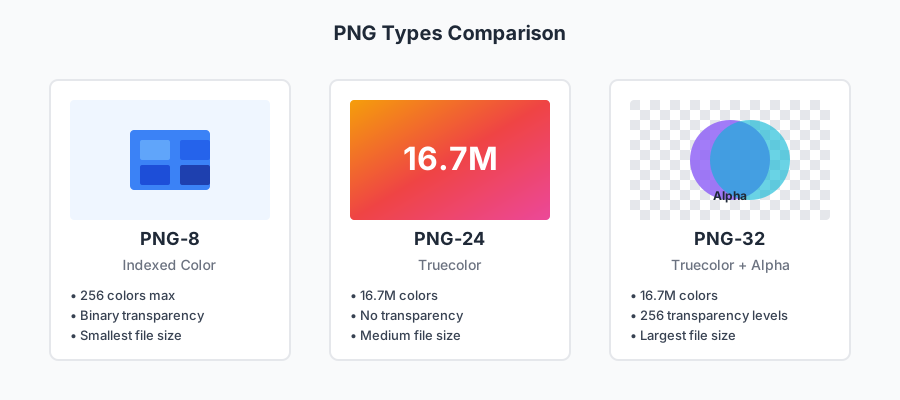
The three main PNG types: palette-based PNG-8, truecolor PNG-24, and PNG-32 with alpha transparency
PNG-8 (Indexed color)
Color depth: 256 colors (8-bit palette) Transparency: Yes, but binary (on/off only) File size: Smallest Best for: Simple graphics, logos with limited colors, icons
Think of PNG-8 as “GIF but better.” It uses a color palette (like GIF) but with better compression. If your image has fewer than 256 colors and doesn’t need smooth transparency, PNG-8 is surprisingly efficient.
Example use cases:
- Flat design icons
- Simple logos
- UI elements with solid colors
- Pixel art
PNG-24 (Truecolor)
Color depth: 16.7 million colors (24-bit RGB) Transparency: No File size: Medium to large Best for: Graphics with many colors but no transparency needed
This is PNG without alpha channel. It’s less common because if you don’t need transparency, JPEG is usually smaller for photographs. But for graphics that need lossless quality without transparency, PNG-24 works.
Example use cases:
- Screenshots (if you don’t need transparency)
- Graphics with text that need perfect quality
- Images you’ll edit repeatedly
PNG-32 (Truecolor + Alpha)
Color depth: 16.7 million colors + 256 transparency levels (32-bit RGBA) Transparency: Yes, full alpha channel File size: Largest Best for: Graphics with smooth transparency, complex shadows, overlays
This is what most people mean when they say “PNG.” Full color, full transparency control. Every pixel can be any color and any opacity from 0% (invisible) to 100% (solid).
Example use cases:
- Logos with drop shadows
- UI elements that overlay content
- Images with soft edges or glows
- Product photos on transparent backgrounds
File size reality check:
Same 1000x1000px graphic:
PNG-8:  45 KB   (limited colors, binary transparency)
PNG-24: 380 KB  (full color, no transparency)
PNG-32: 420 KB  (full color + alpha transparency)
JPEG:   85 KB   (full color, lossy, no transparency)
The transparency comes at a cost.
When to use PNG
✅ Perfect for:
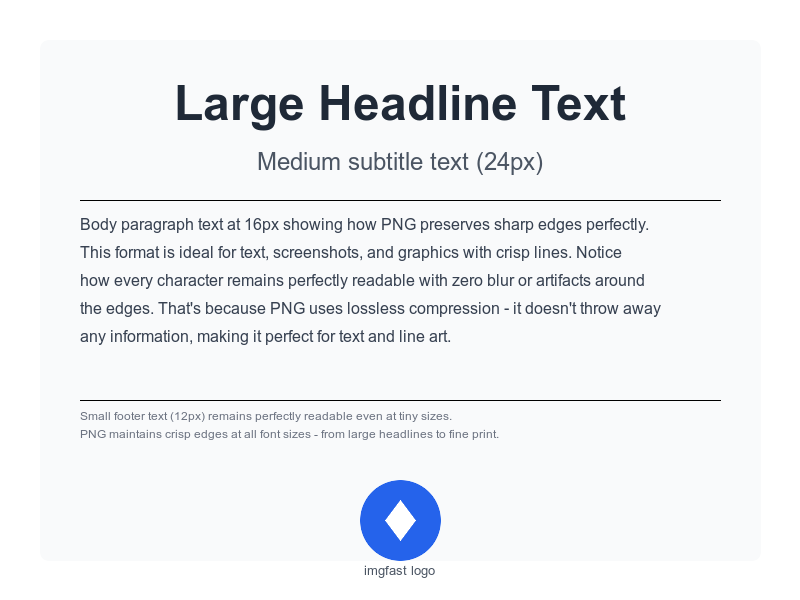
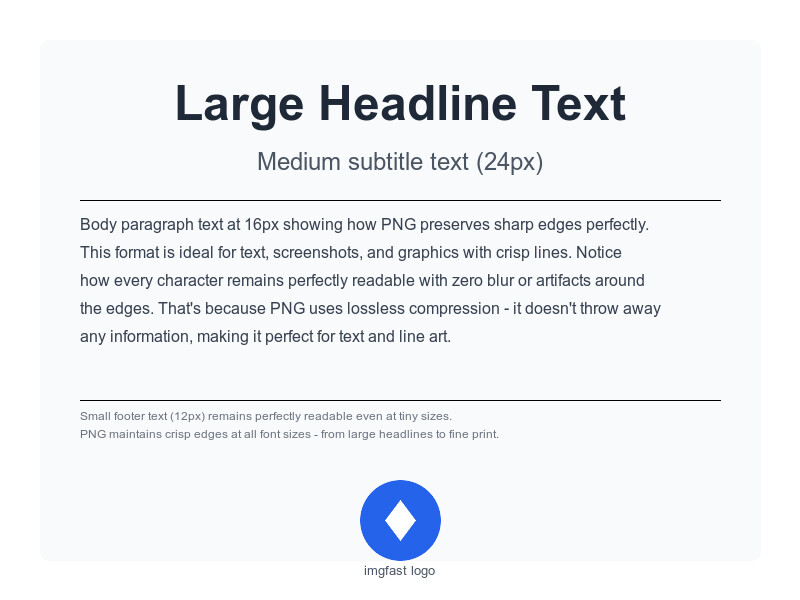
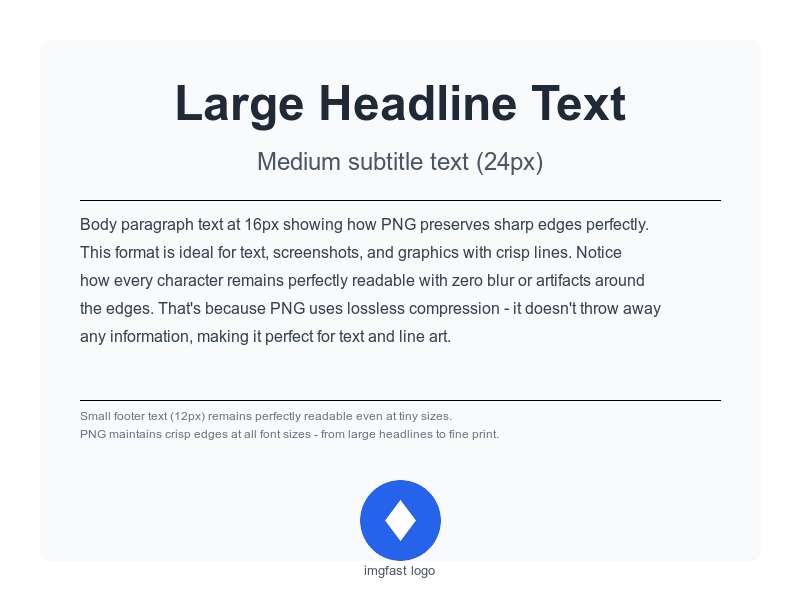
Text and typography - PNG keeps text crisp and readable at any size. JPEG makes text blurry.
Text Quality: PNG vs JPEG
PNG preserves sharp edges perfectly. JPEG creates blur and artifacts around text.
Logos and branding - Especially when you need them on different backgrounds. The transparency lets logos work anywhere.
Screenshots - Pixel-perfect capture of interfaces, code, or designs. No compression artifacts.
Graphics and diagrams - Charts, infographics, technical diagrams - anything with sharp lines and solid colors.
Icons - Both full-color icons and simple monochrome ones. PNG keeps edges crisp.
Images you’ll edit later - Since PNG is lossless, you can save, edit, save again without degradation.
Line art and illustrations - Drawings, comics, vector-style graphics. PNG preserves every detail.
❌ Not good for:
Photographs - File sizes will be massive. A photo that’s 200 KB as JPEG might be 2-3 MB as PNG.
Animation - PNG doesn’t support it. Use GIF, WebP, or video formats.
When file size is critical - PNG is lossless, which means larger files. If you’re bandwidth-limited and quality can be slightly reduced, use JPEG or WebP.
Large images - A 4000x3000 photograph as PNG will be enormous. Use JPEG or modern formats.
How PNG compression works
PNG uses lossless compression, which means it makes files smaller without throwing away any data. The trick is finding patterns in the image data.
The compression process:
-
Filtering - PNG analyzes each row of pixels and applies a filter to make the data more compressible. It picks the best filter for each row.
-
Deflate compression - Uses the same algorithm as ZIP files (DEFLATE) to compress the filtered data. It finds repeated patterns and encodes them efficiently.
-
That’s it - No data is lost, no quality is sacrificed.
Why this matters:
- Simple graphics compress well - Solid colors and repeated patterns = small files
- Complex images don’t - Photographs with millions of unique colors = huge files
- Horizontal patterns help - PNG compresses row-by-row, so horizontal stripes compress better than vertical
This is why a PNG logo might be 20 KB but a PNG photo is 2 MB. The logo has lots of repeated colors; the photo doesn’t.
Optimizing PNG files
PNG files straight from Photoshop or other tools are often bigger than they need to be. Here’s how to make them smaller without losing quality:
Strip metadata
PNG files can contain lots of extra data you don’t need for web:
- Creation software info
- Color profile data (sometimes)
- Modification timestamps
- Comments and annotations
Stripping this can save 10-30% of file size.
Tools:
# ImageMagick
magick input.png -strip output.png

# pngcrush
pngcrush -rem alla -reduce input.png output.png

# Our tool does this automatically
Optimize compression
PNG’s compression isn’t automatic - different tools use different strategies. Optimizers try multiple approaches and pick the best.
Tools to use:
OptiPNG - Conservative, safe optimization
optipng -o7 image.png
# -o7 = maximum optimization (slowest but smallest)
pngquant - Lossy conversion to PNG-8 (if your image allows it)
pngquant --quality=65-80 image.png
# Converts to PNG-8 with perceptual quality control
pngcrush - One of the oldest, still effective
pngcrush -brute input.png output.png
# Tries every compression method
ImageMagick - Quick and easy
magick input.png -quality 95 output.png
# Not as aggressive as specialized tools
Reality check: These tools can often reduce file size by 20-50% without any visible quality loss.
Consider PNG-8 for simple graphics
If your image has limited colors, converting from PNG-24/32 to PNG-8 can save massive space:
# pngquant (best quality)
pngquant 256 --output output.png input.png

# ImageMagick
magick input.png -colors 256 -define png:compression-level=9 output.png
You’ll lose smooth gradients and millions of colors, but for logos and simple graphics, it’s often fine.
Use WebP or AVIF with PNG fallback
Modern browsers support WebP and AVIF, which give you transparency AND smaller files:
<picture>
  <source srcset="image.avif" type="image/avif">
  <source srcset="image.webp" type="image/webp">
  <img src="image.png" alt="Description">
</picture>
The browser picks the best format it supports. Old browsers get PNG, modern browsers get WebP/AVIF (often 50-70% smaller).
Common PNG problems and solutions
Problem: Huge file sizes
Cause: Using PNG for photographs or complex images
Solutions:
- Switch to JPEG for photos (if transparency isn’t needed)
- Use WebP or AVIF (transparency + better compression)
- Resize the image to actual display size
- If you must use PNG, run optimization tools
Problem: Banding in gradients (after PNG-8 conversion)
Cause: PNG-8 only supports 256 colors, so smooth gradients get quantized
Solutions:
- Use PNG-24/32 instead (if you need smooth gradients)
- Add subtle noise/dithering to hide banding
- Switch to JPEG or WebP for photographic gradients
Problem: White halos around transparent edges
Cause: Image was created with a white background, then background was removed. Semi-transparent pixels still have white mixed in.
Solutions:
- Recreate the image from original without white background
- Use “defringe” or “remove white matte” tools in photo editors
- Manually clean up edges in Photoshop
- Prevention: Always work with transparency from the start
Problem: Image looks different in different browsers
Cause: Color profile issues (sRGB vs others)
Solutions:
- Always save as sRGB for web
- Strip color profiles for consistency (or embed sRGB profile)
- Test in multiple browsers
- Use color-managed tools when creating PNGs
Problem: Slow loading times
Cause: Large PNG files
Solutions:
- Optimize with pngquant/optipng/pngcrush
- Lazy-load images below the fold
- Use responsive images (serve smaller PNGs to mobile)
- Consider switching to WebP/AVIF
- Use progressive rendering (Adam7 interlacing - though this increases file size slightly)
PNG vs other formats
PNG vs JPEG
Use PNG when:
- You need transparency
- You need pixel-perfect quality (text, logos, screenshots)
- File size isn’t critical
- You’ll edit the image multiple times
Use JPEG when:
- It’s a photograph
- File size matters
- Slight quality loss is acceptable
- No transparency needed
PNG vs GIF
Use PNG when:
- You need better color depth (more than 256 colors)
- You need better transparency (alpha channel)
- You want smaller files for static images
- Image quality matters
Use GIF when:
- You need animation (PNG doesn’t support it)
- You’re targeting ancient browsers (pre-IE6)
- You’re making memes (just kidding - use WebP or video)
PNG vs WebP
Use PNG when:
- You need maximum compatibility (WebP is at 96% browser support)
- You want a simple workflow (no fallbacks needed)
- File size difference doesn’t matter
Use WebP when:
- You want smaller files (typically 25-35% smaller than PNG)
- You’re okay with fallback images for old browsers
- You want better compression with transparency
PNG vs AVIF
Use PNG when:
- You need maximum compatibility (AVIF is at ~85% browser support)
- You want established tooling
- Simple workflow matters
Use AVIF when:
- You want the smallest possible files with transparency
- You can provide fallbacks
- You’re targeting modern browsers
Quick reference: PNG decision tree
Need transparency?
├─ No → Consider JPEG, WebP, or AVIF instead
└─ Yes → Continue

Is it a photograph?
├─ Yes → Use WebP or AVIF with PNG fallback
└─ No → Continue

How many colors?
├─ Under 256 colors → Use PNG-8 (small file size)
└─ Many colors → Continue

Need smooth transparency?
├─ Yes → Use PNG-32
└─ No → Use PNG-8 or PNG-24

File too large?
├─ Yes → Optimize with pngquant/optipng
└─ No → You're good!
Command-line tools
Basic conversion
# Convert to PNG
magick input.jpg output.png

# Convert to PNG-8 (256 colors)
magick input.png -colors 256 output-8bit.png

# Resize and convert
magick input.png -resize 800x600 output.png
Optimization
# OptiPNG (lossless optimization)
optipng -o7 image.png

# pngquant (lossy conversion to PNG-8)
pngquant --quality=65-80 image.png -o output.png

# pngcrush (lossless optimization)
pngcrush -brute input.png output.png

# ImageMagick optimization
magick input.png -strip -define png:compression-level=9 output.png
Batch optimization
# Optimize all PNGs in a directory
for file in *.png; do
  optipng -o7 "$file"
done

# Or with pngquant (lossy but smaller)
pngquant --quality=65-80 --ext=.png --force *.png
Using our tool
Or just use imgfast and we handle all the optimization automatically. Upload, convert, download. Done.
The bottom line
PNG isn’t going anywhere. It’s been the standard for transparent graphics for nearly 30 years, and it’ll likely be around for 30 more.
Modern PNG strategy:
- Use PNG for what it’s good at - Text, logos, graphics, screenshots, transparency
- Don’t use PNG for photos - JPEG, WebP, or AVIF are way more efficient
- Always optimize - Tools like pngquant and optipng can cut file sizes in half
- Consider modern formats - WebP and AVIF offer transparency with better compression
- Use PNG-8 when possible - If your graphic has limited colors, PNG-8 is surprisingly small
PNG is the reliable choice. It might not be the smallest or the fanciest, but it works everywhere, it’s lossless, and it handles transparency beautifully. Sometimes that’s exactly what you need.
Related articles:
- JPEG: The Format That Won’t Die - When lossy compression is fine
- WebP: Google’s Modern Format - Smaller files with transparency
- AVIF: The Next Generation - Even smaller files with transparency
- Image Optimization Guide - Serve the right format to each browser
Questions? We’re a small team and actually read our emails - reach out if you need help with PNG optimization.